Discovery Process
The Discovery Process begins with creating the discovery profile, which includes the network or the range of devices to discover.
-
To manually configure a discovery profile, click on the New button
 on the Discovery Profile Settings screen. See Creating a Discovery Profile.
 -
You can also import an existing discovery profile from another ADT instance.
Discovery can be triggered manually or you can automate discovery.
Manual Discovery
To manually run discovery:
-
Open the ADE Tool by navigating to Start > All Programs > Asset Discovery Expert > ADE Tool.
-
To proceed, click Next. The Login dialog displays.
-
Select Connect to authenticate with ChangeGear using your credential or select Offline Mode to skip the ChangeGear connection process. See Connecting to ChangeGear/ADE. If you wish to cancel the login process, click Cancel.
-
After a successful login, you will be redirected to the profile management page.
-
Select a profile and clicking Discover CIs....
-
Click Save and Discover to close the editor and begin discovering resources.
-
The ADE Tool will discover the network devices. A summary of the discovered resources will display. Choose Import. Depending on how large your network is, or how much of your network you have chosen to scan, this may take some time.
Note: Clicking Finish will close the dialog and return you to the profile management dialog without importing any resources.
-
Click Finish.
You have now imported the discovered CIs into Asset Discovery Expert. Newly discovered items are imported as "Unclassified" items. You can view the new items using the Views task menu under Favorites > Newly Discovered. See Viewing Newly Discovered CIs for more information.
Automated Discovery
Automating discovery tasks allows you to scan your network during non-peak hours.
When ADE scans the network and imports the results to CMDB, newly discovered resources are classified as "Unclassified." CIs already entered in the CMDB have their scanned date modified to reflect the last time the CI was scanned. If you have deleted a CI and have not removed it from your network, the deleted CI will be rediscovered and marked as "Unclassified." See Viewing Newly Discovered CIs for more information.
Tip: To exclude CIs that you do not want to track, you can mark them as "Unmanaged" in the CMDB. If you do not want to discover certain resource types, you can clear the selection in the Resource Type Chooser under the Advanced Discovery Settings.
To automate discovery from the CMDB:
-
Open the ADE Tool by navigating to Start > All Programs > Asset Discovery Expert > ADE Tool.
-
Navigate to the Discovery Profile Settings page.
-
Select a profile.
-
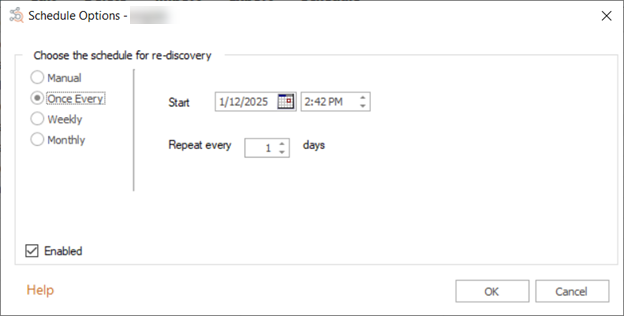
Select Schedule. The Schedule Options dialog will display.
-
Set the schedule of the distribution. Selections are similar to Windows Scheduled Tasks.
Note: Ensure that the distribution is enabled.
-
Click OK to save the scheduling information for the profile.